

Lookup Tables
This article describes how to work with Lookup Tables and includes the following:
- Overview
- Use Cases for Lookup Tables
- Uploading New Lookup Tables
- Managing Lookup Tables
- Using Lookup Tables
- Lookup Table Example
Overview
The following workflow diagram illustrates the three main steps you'll perform when working with Lookup Tables.
flowchart LR
A[Create a Lookup Table]
 A --> B[Upload the Lookup Table]
 B --> C[Transform & Filter Stream Data]
Use Cases for Lookup Tables
- To transform and filter data from streams before streaming to Anodot.
- To stream new data where the existing filters and transformations may no longer apply.
- To apply additional and updated transformations and filters to data, without creating new streams.
- To attribute pageviews or impressions to an organization’s funnel steps (see the example use case below).
Use Case: Attributing pageviews or impressions to an organization’s funnel steps
- Objective: Attribute pageviews or impressions to my organization’s funnel steps.
- Problem: URLs (in Google Analytics for example) can be very long strings, and include many parts such as the query part and more.
- Solution: Use a mapping file with the URL prefixes you want to keep tabs on, as described below:
- Create a CSV with two columns: 1) the URL prefixes you want to find in the original URL from GA, and 2) the funnel step name/number.
- Upload the CSV to Anodot to be used in the stream.
- In the GA stream (assuming you are getting impressions/pageviews per URL):
- Duplicate the URL column to a new column; call it “funnel_step”.
"Exclude” the original URL column from streaming, as it usually creates very large amounts of metrics. - Create a Replace by lookup transformation on the funnel_step column.
- Use the file you just created as the input file.
- Specify a value for entries that are not part of the funnel steps.
- Duplicate the URL column to a new column; call it “funnel_step”.
- Result: From the many URL values, you receive a stream with the total number of impressions/pageviews per funnel step. This is a lot easier to monitor, and apply changes to.
See also the Lookup Table example below.
Uploading New Lookup Tables
- From the main Anodot Navigation Panel, select Management > Asset Management.
- In the top right corner, click + New and then select Lookup Table.
- Browse to select and upload the new Lookup Table file.
The file must be in CSV format and contain only 2 columns and a maximum of 10,000 rows. In addition:
- The first row must contain the column names
- The left column must contain unique values and is used as input to the lookup
- The new Lookup Table is added to the displayed list of assets.
Managing Lookup Tables
- On the Asset Management page, use the Filters panel to filter the list of displayed asset types to Ref Table (or Lookup Table) only.
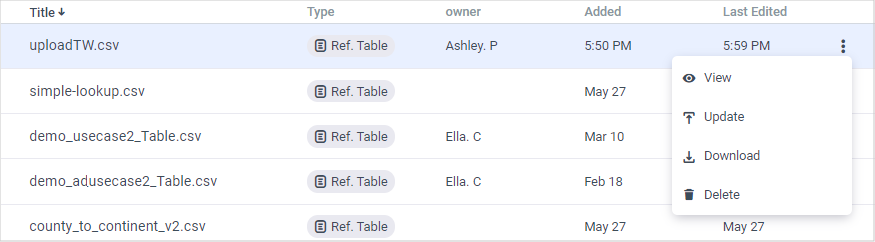
- In the filtered list of Lookup Table assets, click the More icon for the relevant asset to:
-
View a preview of the Lookup Table contents.
-
Update the existing Lookup Table with an updated version (you are prompted to browse for the updated file).
-
Download the Lookup Table.
-
Delete the Lookup Table (only applicable if it is not used in any stream)
-
Using Lookup Tables
As described in Use Cases for Lookup Tables you can use Lookup Tables to:
- Transform Data
- Filter Data
To Transform Data
-
On the Sources page (accessed by clicking Integrations > Sources in the Navigation Panel), locate the source and stream to which you want to apply a transform function.
-
Hover over the relevant stream and click Edit to display the Stream Query page.
-
Verify that the dimension you want to transform is listed in the Measures & Dimensions panel. and click Next to display the Stream Table.
-
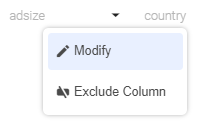
Hover over and click the arrow icon alongside the Dimension column you want to transform. From the displayed options, select Modify.
-
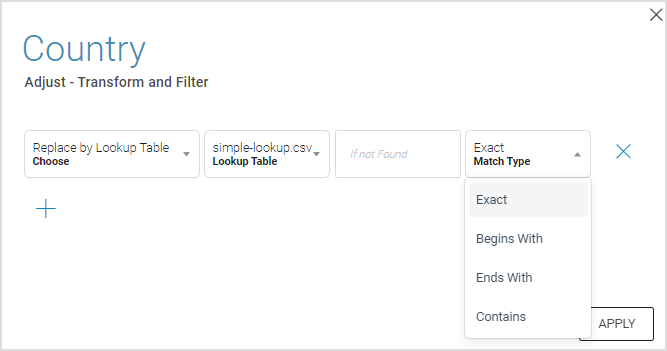
In the displayed dialog box, select Replace by Lookup Table from the Transforms dropdown list.
-
In the displayed Lookup Table dropdown list, select the relevant Lookup Table.
-
Enter free-text in the If not Found text box to replace existing values that do not have a corresponding input row in the Lookup Table.
-
Select the match type from one of Exact, Begins With, Ends With, or Contains. This optional parameter enables you to keep a closer tab on the metrics you really want to track; for more information about a specific use case, see Use Case: Attributing pageviews or impressions to an organization’s funnel steps .
-
Click APPLY . The Lookup Table replacement is automatically applied.
To Filter Data
-
On the Sources page (accessed by clicking Integrations > Sources in the Navigation Panel), locate the source and stream to which you want to apply a filter.
-
Hover over the relevant stream and click Edit to display the Stream Query page.
-
Verify that the dimension you want to transform is listed in the Measures & Dimensions panel. and click Next to display the Stream Table.
-
Hover over and click the arrow icon alongside the Dimension column you want to transform. From the displayed options, select Modify.
-
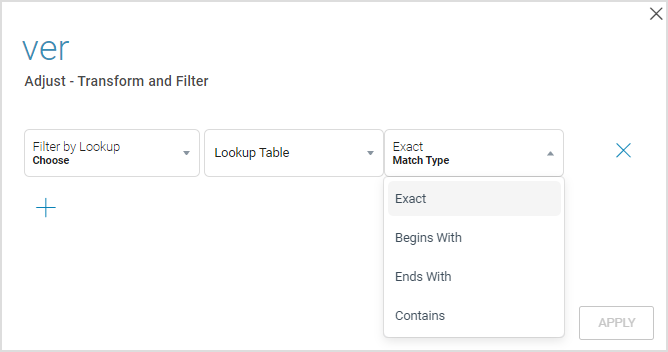
In the displayed dialog box, select Filter by Lookup from the Transforms dropdown list.
-
In the displayed Lookup Table dropdown list, select the relevant Lookup Table.
-
Select the match type from one of Exact, Begins With, Ends With, or Contains. This optional parameter enables you to keep a closer tab on the metrics you really want to track.
-
Click APPLY. The Lookup Table filter is automatically applied.
Lookup Table Example
If, for example, you wanted to filter your Top 10 campaigns. the following steps describe how to use a Lookup Table to do just that:
- Create the required stream.
- Ensure one of the stream columns is “Campaign Name" (or ID).
- Include a "Filter by Lookup" in the stream, with a CSV file called "top10campaigns.csv".
- Create the CSV with the top 10 campaign names.
*Note: Whenever you update the top 10 list, update the file and the table in Anodot (manually or via API).
As a result, the top 10 campaigns are filtered according to the content of the file. Other campaigns are not included in the metrics.
Transformation by Lookup Table:
- Map line of business to org unit.
- Map account to account owner.
- Map country code to country name.
Updated over 1 year ago