

Google Ads
The Google Ads Collector enables you to collect and monitor main Google Adwords KPIs
This article includes:
- Creating a Google Ads Data Source - Connect to your Adwords account.
- Creating a Google Ads Stream - Choose one of the existing templates.
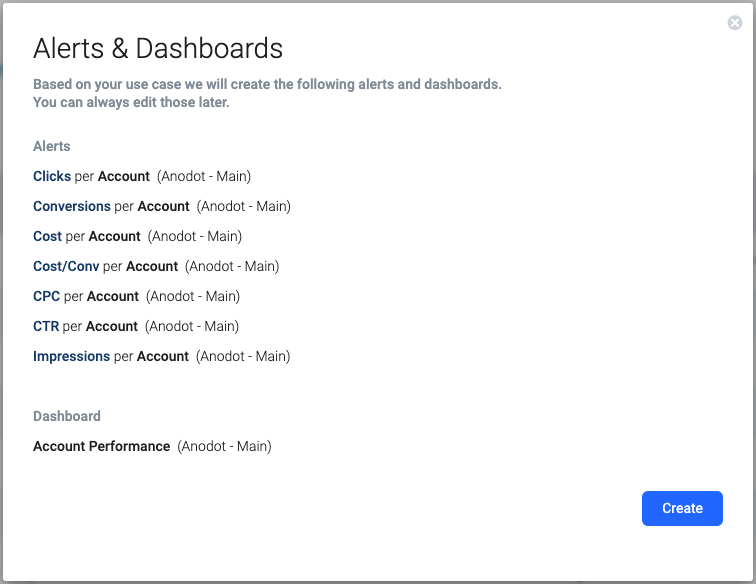
Alerts and dashboards will be created automatically. You can edit the alerts and dashboards or create your own.
Creating a Google Ads Data Source
-
In the Navigation Panel, go to Integrations > Catalog.
-
Use the Search box OR click the Business Packages filter to locate the data source.
-
Hover over the Google Ads tile, and click Start.
*Note: If the data source has already been used, a dialog is displayed in which you can select from one of the listed sources. Alternatively, create a new source by clicking Add a new source. -
In the displayed dialog, follow the onscreen instructions, namely requesting permission to access your Google Adwords accounts.
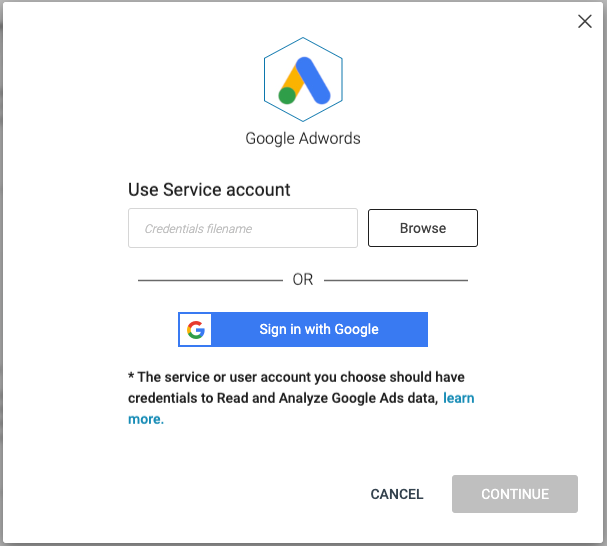
The Google account you provide needs to have read access to your Google Ads accounts.
Creating a Google Ads Stream
If you have just created a Google Ads data source, skip to step 3.
- In the Sources page (accessed by clicking Integrations > Sources in the Navigation Panel), filter the list of streams to find the Google Ads source for which you want to create a stream query.
*Note: The streams associated with that source are displayed. If the streams panel is empty, no streams exist for that source. - Hover over the Google Ads data source, and click + New Stream. The Stream Query page is displayed.
- Define the following:
-
Select the account from the list of available Google Adwords accounts.
-
Select the use case from the available use cases (Conversion Analysis, Account Performance or Campaign and AdGroup Performance).
-
Set the scheduling parameters: click the pencil icon to define the Collect Files Every, Delay (Minutes)(default is 45 minutes), and Collect Since (default is Last 7 Days) values.
Note: Select the Daily Accumulation checkbox if you want to preserve backward compatibility. When creating a new stream we recommend keeping it unchecked.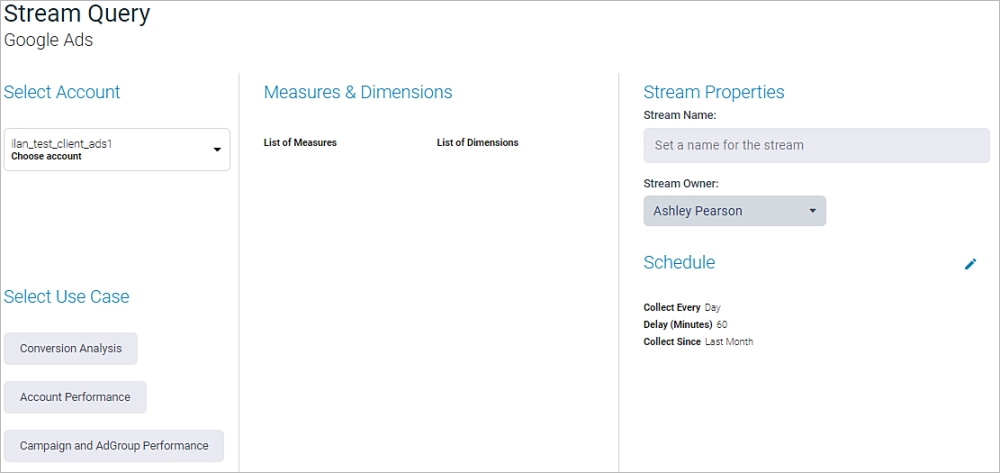
-
- Click NEXT to collect data and move to the Stream table.
- In the Stream Table page:
-
Click Stream-It to stream the metrics.
-
We will create the Required Alerts and Dashboard for you; they will be available once the stream is live.
-
Updated over 1 year ago