

Setting a Custom Time Range per Chart or Meter Tile
When creating a new Chart or Meter Tile use either the default settings or set a Custom Time Range.
Custom Time Ranges can be used to compare the same metrics over different time ranges; for example the Number of visitors over the last day, last week or last month.
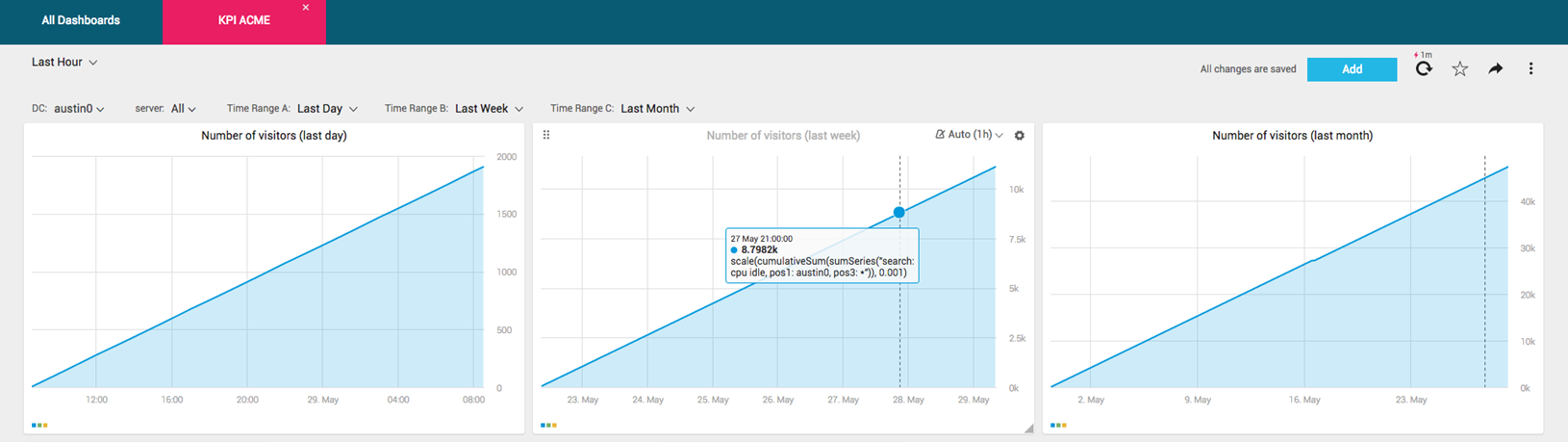
To create comparative time range chart or meter tiles, duplicate the original tile [Click the tile Settings icon  > Duplicate, saving the new tile or tiles using informative names] and set custom time ranges.
To set a custom time range
-
Create a new Chart or Meter Tile - follow steps 1-4 in Creating a Dashboard Chart Tile or Creating a Dashboard Meter Tile.
-
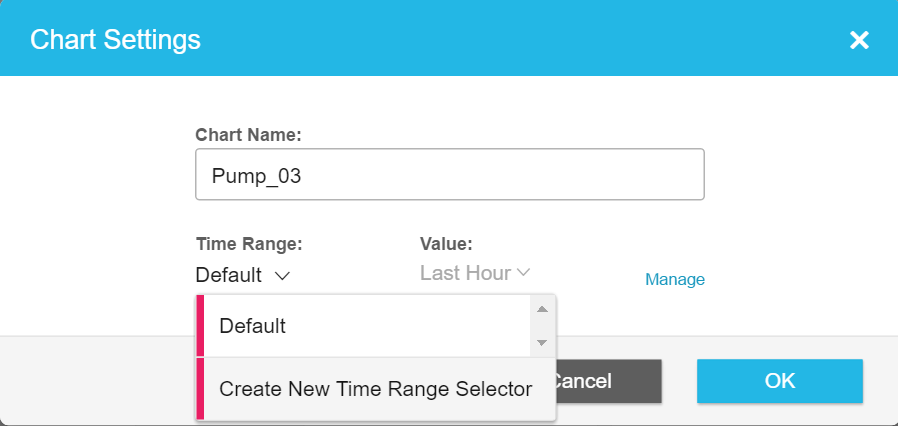
In the Chart/Meter Settings dialog box, from the time Range drop-down menu, select Create a New Time Range Selector.
-
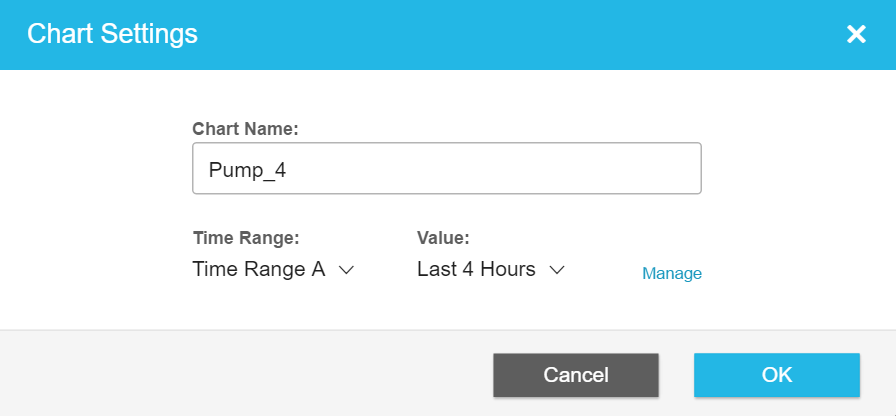
From the Value drop-down menu, select:
- Either a predefined Time Range value
- Or select Custom to set a Custom Date Range using the Choose Custom Date From and To calendars.
-
Click OK. The new time range takes effect automatically.
To Delete a Time Range
- Click the Dashboard Settings menu
 > Selectors.
 - In the Dashboard Selectors window, select the Time range you want to delete.
- In the Time Range pane, click the Remove icon
 .
.
Updated over 1 year ago