

Google Auction Insights
The Google Auction Insights collector enables you to further monitor your Google Ads reporting.
Defining Google Auction reports
- Ensure the Anodot domain is added as an allowed domain so the relevant user can be added.
- Add and confirm the Anodot user (confirmation is done automatically, but might take a few minutes). Note the Anodot user should be an "email only" user, to make sure no access is given to it, other than to receive scheduled reports.
- In the Google Ads UI, navigate to Reports>Pre-defined reports>Auction Insights.
- Define a daily schedule for the report.
- Define the output as CSV.
- Set the time the report is sent.
- In the recipients list, make sure the email user you created in Step 2 is included.
- Generate one report on the spot and download it. This file is used as a sample in the stream creation process (see Creating a Google Auction Insights stream query).
Creating a Google Auction Insights data source
- In the Navigation Panel, go to Integrations > Catalog.
- Use the Search box OR click the Business Packages filter to locate the data source.
- Hover over the Google Auction Insights tile, and click Start.
- In the displayed dialog follow the onscreen instructions (for example, you will be prompted to login to the relevant Google Ads account).
Creating a Google Auction Insights stream query
If you have just created a Google Auction Insights data source, skip to step 3.
-
In the Sources page (accessed by clicking Integrations > Sources in the Navigation Panel), filter the list of streams to find the Google Auction Insights source for which you want to create a stream query.
*Note: The streams associated with that source are displayed. If the streams panel is empty, no stream queries exist for that source. -
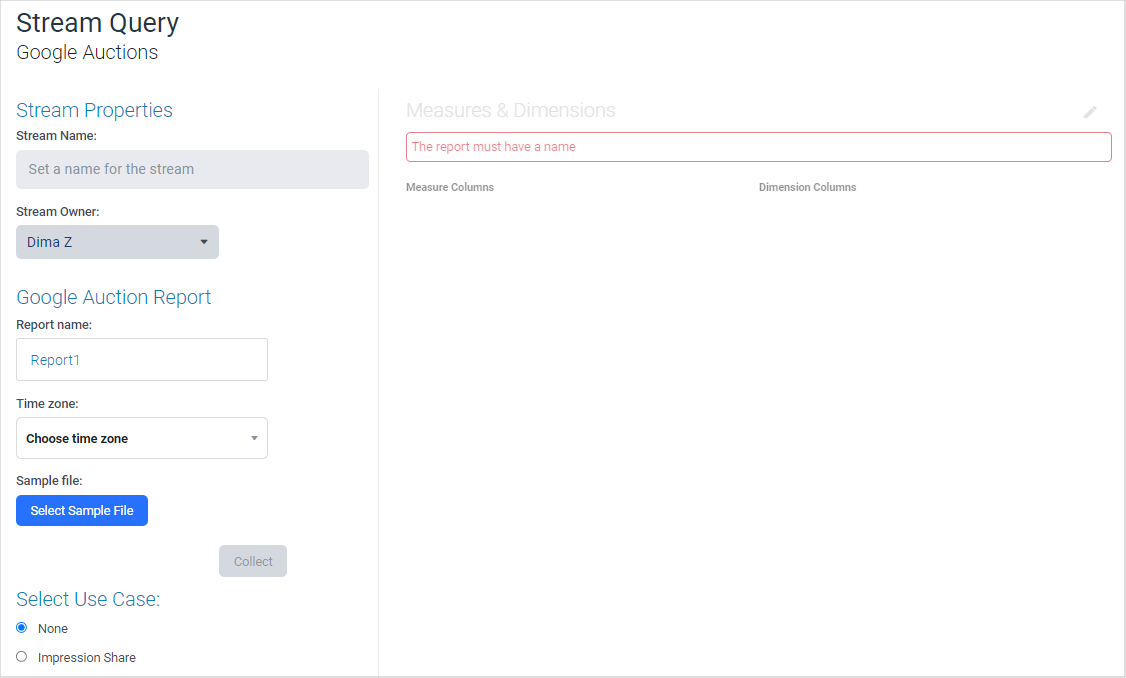
Hover over the Google Auction data source, and click + New Stream. The Stream Query page is displayed.
-
Define your stream query settings in the following sections:
- Stream Properties: Define a name and owner for the stream.
- Google Auction Report: Specify a report name and time zone, and click Select Sample File to select the sample file you created in Defining Google Auction reports . Anodot analyzes the file and determines the measures and dimensions.
- Select Use Case: Select from None or Impression Share.
-
Review the Stream Query page to confirm your chosen stream data.
-
Click NEXT. The Stream Table is displayed; see Stream Tables for more information.
Updated over 1 year ago