

PostgreSQL
This article describes how to create a PostgreSQL data source.
Creating a PostgreSQL data source
-
In the Navigation Panel, go to Integrations > Catalog.
-
Use the Search box OR click the Databases filter to locate the data source.
-
Hover over the PostgreSQL tile, and click Start. The Postgres dialog is displayed, as shown below.
Note: If the data source has already been used, a dialog is displayed in which you can select from one of the listed sources. Alternatively, create a new source by clicking Add a new source.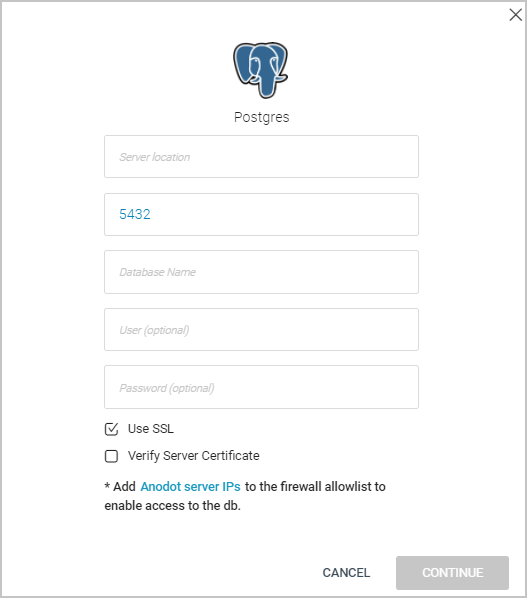
-
Enter your Server location.
-
Either enter your PostgreSQL port number or leave the default port number [5432] as-is.
-
Enter a Database name.
-
[Optional] Enter a user name.
-
[Optional] Enter a user password.
-
Select/clear the Use SSL checkbox. By default it is selected.
-
Select the Verify Server Certificate checkbox.
-
Add an Anodot server IP to your firewall's allowlist. See Allowlist Anodot Servers .
-
Click CONTINUE to open the Stream Query window.
To create a PostgreSQL stream query, see Creating a Stream Query from a Database .
Updated over 1 year ago