

Asset Management Overview
You can manage a variety of uploaded assets through the Assets Management page, which can be accessed from the Anodot Navigation Panel.
Currently, the assets that you can manage include:
- Dynamic Routing tables: These files are used to distribute alerts to designated recipients according to anomalous metric values.
- Lookup tables: Also known as Reference tables, these files are used in transformation and filtering in streams.
To access the Assets Management page
-
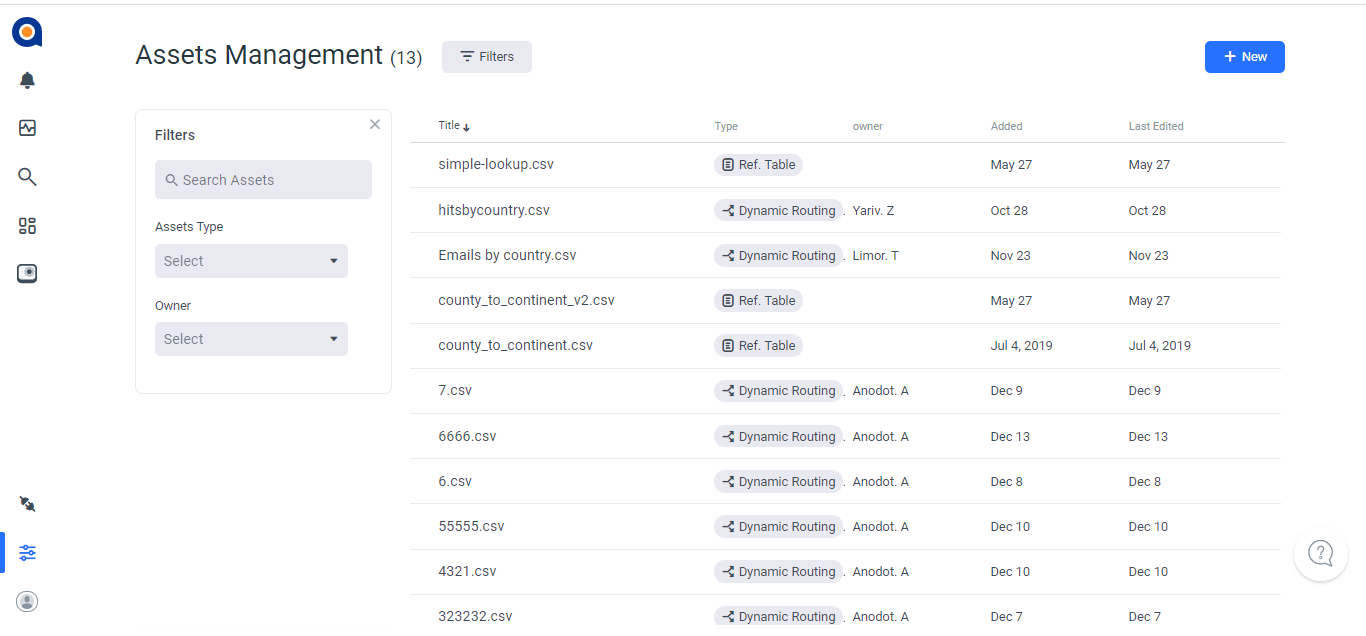
From the Navigation Panel, click Management > Assets Management. The Assets Management page is displayed with a grid of currently defined assets, as shown below.
-
To filter the list of displayed assets, use the Filters section to select the relevant criteria:
- Search Assets: Enter the relevant free text to search for an asset.
- Assets Type: Select from the list of displayed asset types.
- Owner: Select the relevant asset owner.
To add a new asset
- Click the +New button in the top right corner of the Asset Management page.
- Select from one of the following options:
- Lookup Table (refer to Lookup Tables for further information about the required file format)
- Dynamic Routing (refer to Dynamic Routing for further information about the required file format)
- In the displayed browse window, select the relevant file and click Open. The file can then be accessed for use within Anodot, such as when defining alerts.
To view or edit a listed asset
-
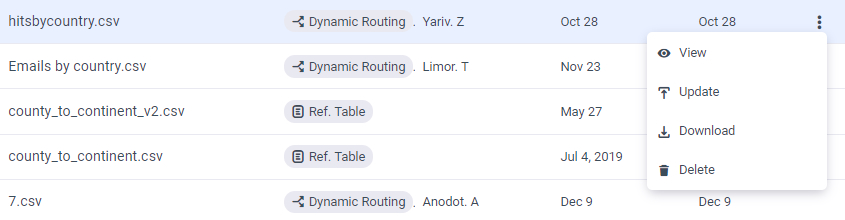
To view or edit a listed asset, click the More icon at the end of the asset row, as shown below, and select the relevant option.
-
Select from the following:
-
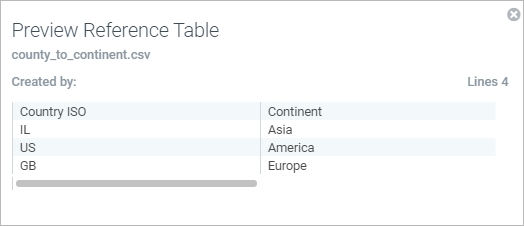
View: Displays a preview of the uploaded file, as below.
-
Update: Enables you to replace the existing asset with an updated file.
-
Download: Enables you to download the asset file.
-
Delete: Enables you to delete the asset file.
-
Updated over 1 year ago