

File Upload
Uploading a CSV File Data Source
- In the Navigation Panel, go to Integrations > Catalog.
- Use the Search box OR click the Storage filter to locate the data source.
- Hover over the File Upload tile, and click Start.
- Navigate and open the relevant CSV file. After the file is successfully uploaded, the Stream Query window is displayed.
The file must be formatted using UTF-8 encoding or ASCII.
Creating a CSV File Upload Stream Query
If you have just created a CSV file upload data source, skip to step 3.
-
In the Sources page (accessed by clicking Integrations > Sources in the Navigation Panel), choose the CSV file upload source for which you want to create a stream query.
Note: The streams associated with that source are displayed. If the Streams panel is empty, no stream queries exist for that source. -
Hover over the File Upload data source, and click + New Stream. The Stream Query page is displayed.
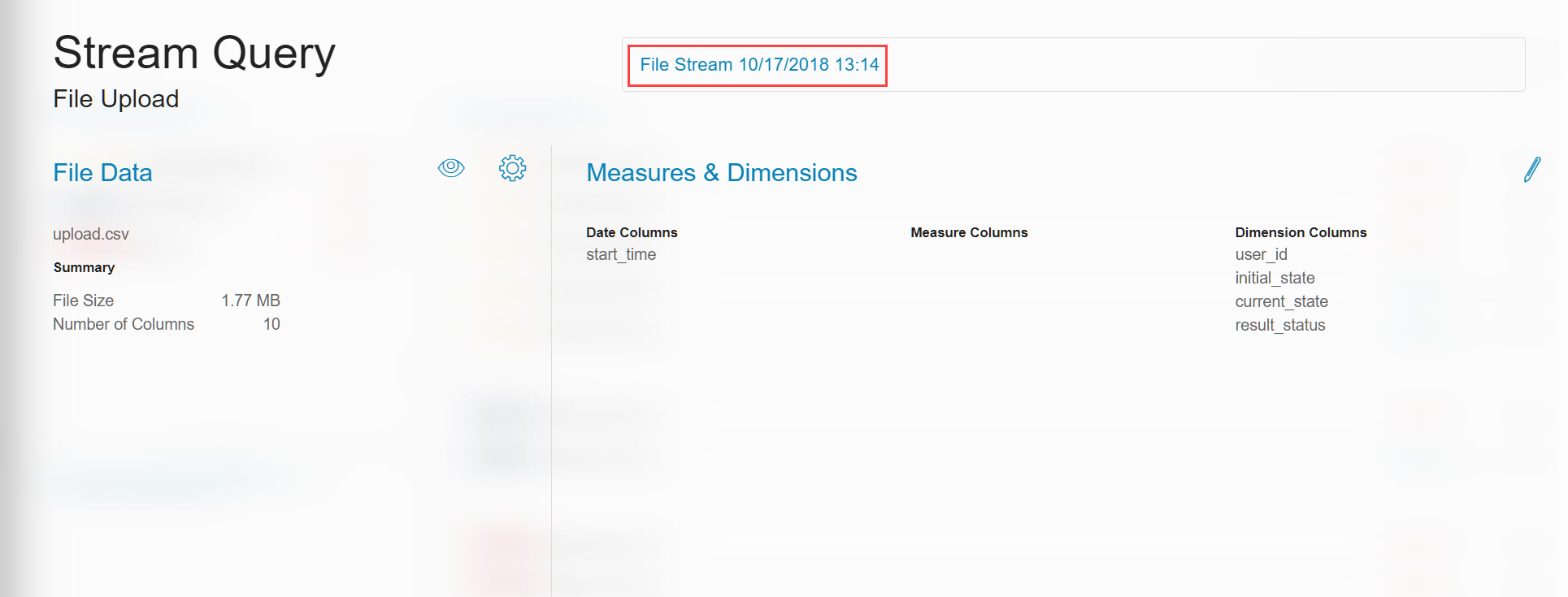
Note: File Data is displayed in the File Upload panel.
Click to preview the uploaded file, and
 to change parsing and import settings. For more information, see Parsing and Import Settings for CSV files .
If there are row errors, they are listed in the File Upload panel, as shown below.

File Stream [date/time] is the default stream name. You can edit the name.
-
Click NEXT. The Stream Table is displayed. See Stream Tables .
If there are no measure columns in the Stream Query, an editable Events Count column is automatically inserted in the Stream Table.
Editing a Stream Query
-
To edit a Stream Query, click the edit icon in the Measures & Dimensions panel.
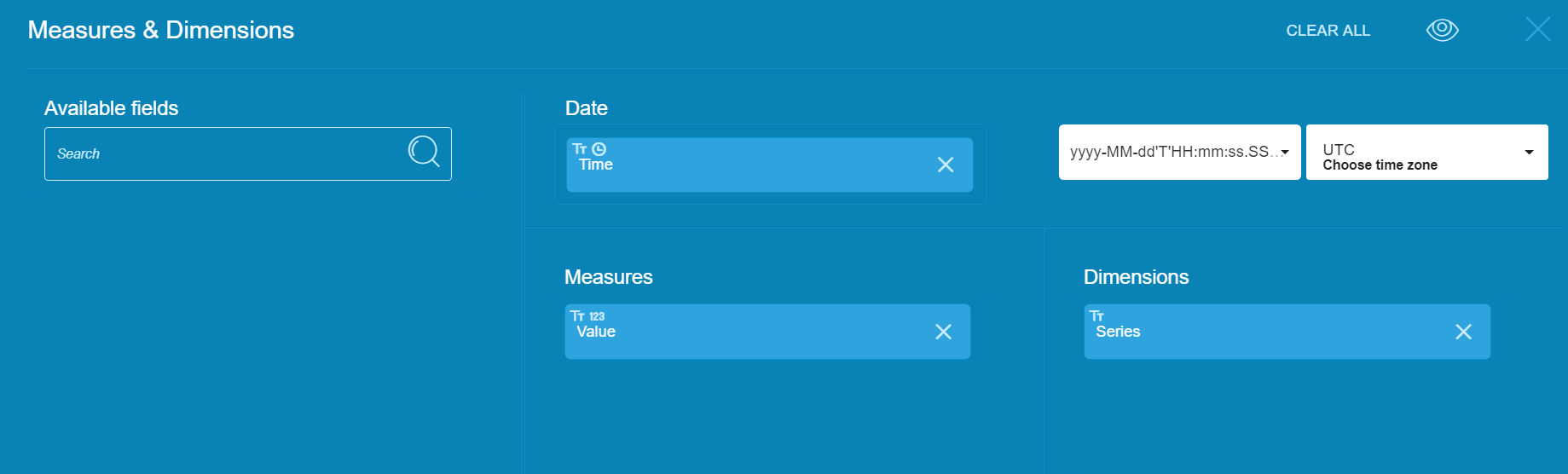
- To add an item, drag from Available fields to the relevant Measures or Dimensions column. Note: At least one dimension and one measure [with a numerical value] are required.
- To clear an item, click the X icon on the item.
Either choose a predefined date and time format from the drop-down menu or enter a user-defined date and time format. - Choose a time zone. The time zone may be either from your browser, your file or a specific location. Note: The time stamp definition and the time pattern are required.
-
Click X to accept the changes and return to the Stream Query window.
-
Click NEXT. The Stream Table is displayed. See Stream Tables .
Parsing and Import Settings
When uploading a CSV file, Anodot data analyzer detects parsing parameters.
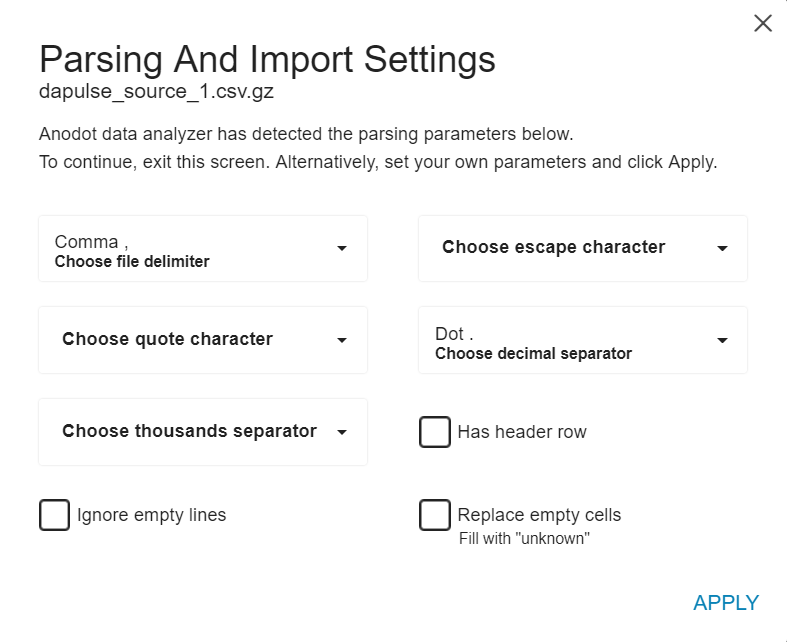
To accept the system-detected parsing parameters, click X.
Setting Customer Specified Parsing Parameters
You can set your own parameters. Set any of the following parameters:
| File delimiter | Comma | ,\ |
| Ampersand | & | |
| Tab | ||
| Pipe | | | |
| Semicolon | ; | |
| White space | ||
| Quote character | None | |
| Double quotes | " | |
| Single quotes | ' | |
| Thousands separator | None | |
| Comma | , | |
| Dot | . | |
| Escape character | None | |
| Back slash | \ | |
| Circumflex | ^ | |
| Record separator | ␞ | |
| Decimal separator | None | |
| Comma | , | |
| Dot | . |
In addition, you can set to:
- Display header rows
- ignore empty lines
- Replace empty cells (fill with 'unknown')
Click APPLY to save the new settings.
Updated over 1 year ago