

Amazon Kinesis
The Amazon Kinesis collector enables you to collect and analyze Kinesis data; the collector currently supports reading JSON records from Amazon Kinesis streams.
Collect your Amazon Kinesis data in three simple steps:
- Provide Anodot read permissions to the Kinesis stream - see Enabling Reading from the Kinesis Stream .
- Create an Anodot Data Source.
- Create Kinesis Data Streams to slice the data according to your use cases.
Creating an Amazon Kinesis data source
-
In the Navigation Panel, go to Integrations > Catalog.
-
Use the Search box OR click the Data Stream filter to locate the data source.
-
Hover over the Amazon Kinesis tile, and click Start. The Amazon Kinesis dialog is displayed, as shown below.
Note: If the data source has already been used, a dialog is displayed in which you can select from one of the listed sources. Alternatively, create a new source by clicking Add a new source.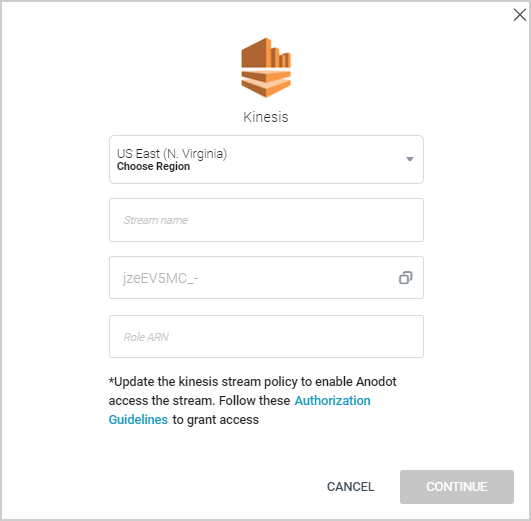
-
From the dropdown menu select the Kinesis stream region.
-
Enter the Stream name you created in your Kinesis account.
-
Enter the Role ARN.
-
Click CONTINUE and define the Stream Query.
Creating an Amazon Kinesis data stream
If you just created a new Amazon Kinesis data source, skip to step 3.
-
In the Sources page (accessed by clicking Integrations > Sources in the Navigation Panel), filter the list of streams to find the Amazon Kinesis source for which you want to create a stream query.
Note: The streams associated with the chosen source are displayed. If the Streams panel is empty, no stream queries exist for that source. -
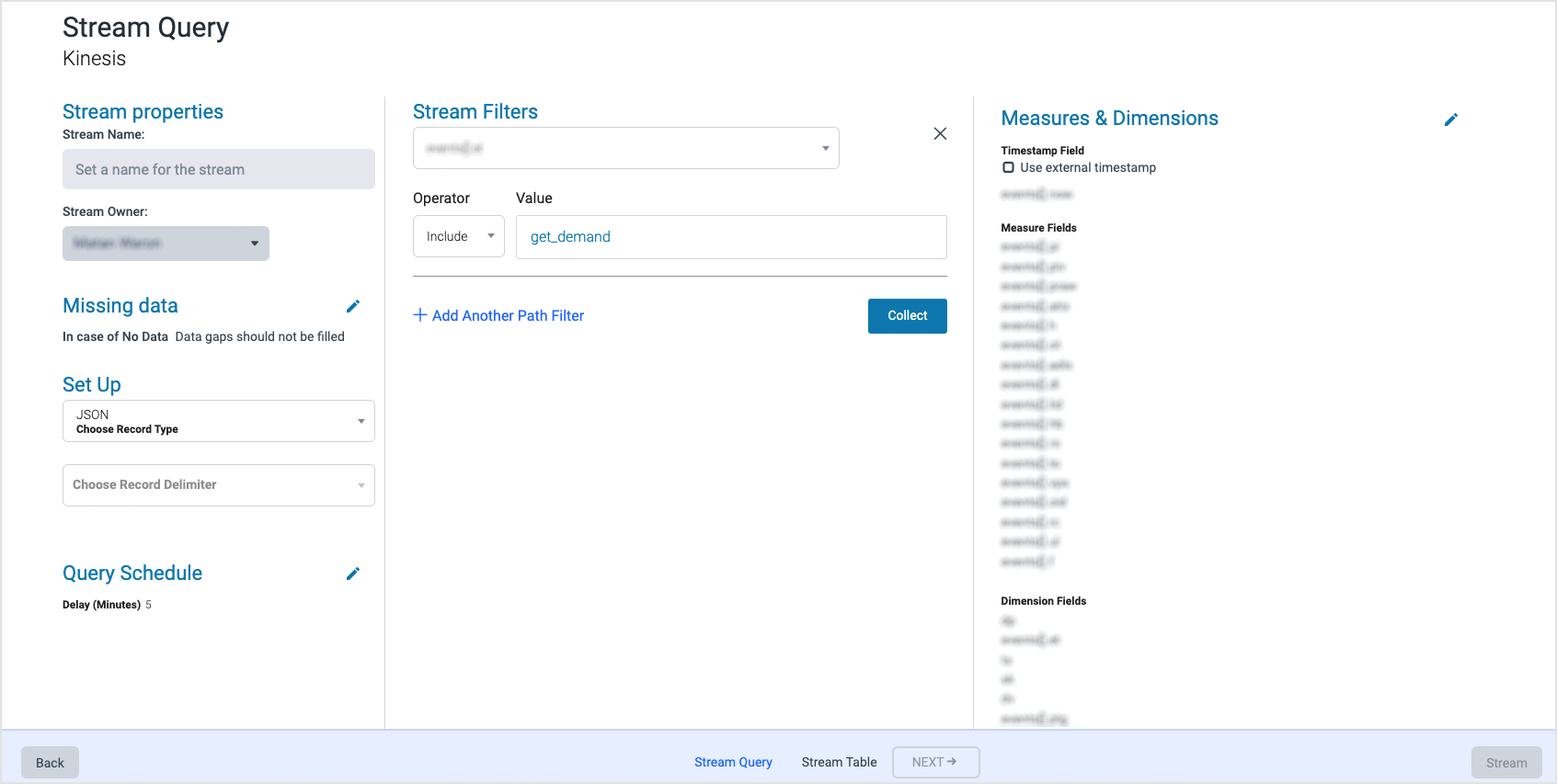
Hover over the Amazon Kinesis data source, and click + New Stream. The Stream Query page is displayed.
-
In the Stream properties section, set the stream name and owner.
-
In the Missing data section, select from one of the following when there is no data:
- Data gaps should not be filled
- Fill in the gaps
-
In the Set up section, choose a:
- Record type - If you use multiple JSON records, choose a record type.
- Record delimiter - Select the relevant delimiter.
-
Click the Query Schedule edit icon to set the delay [in minutes].
Note: To minimize the partial results in your reports, set the delay according to the time it takes the data to be available. -
In the Stream Filters section:
i. Choose a Path filter. Use a dot (".") to indicate hierarchy in the JSON object.1. Fill in the path: Error.Error_Details.Error_code 2. Fill in value: 401{ "Error": { "Error_Details": { "Error_code": "401", "text": "Unauthorized Request", "details": "Request is not allowed in current scope" } } }ii. Choose an Operator, to Include/ Exclude the values specified in step 3 iii.
iii. Enter Values to include or exclude in the filter.
You can also add {DNE} as a specific codeword, which supports the “field does not exist” scenario as one of these values. -
To add more Path filters, click + Add Another Path Filter and repeat step 5. [Optional]
-
Click Collect.
-
Click the Measures & Dimensions edit icon, and add parameters to the query by dragging them from the Available fields to the relevant section.
-
Select the Use external timestamp checkbox to use the Kinesis stream timestamp.
Note that if you clear the checkbox, the timestamp field provided within the JSON message is used, including:- The path representing the timestamp to use
- Path(s) representing measure(s)
- Path(s) representing dimension(s)
-
Click NEXT. The Stream Table is displayed; see Stream Tables for more information.
Filtering Examples
As a user you want to implement the following:
Example 1: To include all json records that have the path chosen no matter what value you chose.
To configure:
- Write the path
- Choose Operator Include
- Fill in a single value ANY (uppercase)
Example 2: To exclude all json records that have the path, no matter what value you chose.
To configure:
- Write the path
- Choose Operator Exclude
- Fill in a single value ANY (uppercase)
Handling Arrays in the input
The Kinesis stream supports JSON arrays, with several restrictions:
-
The array must include only values
-
The array must be a well structured JSON array (starting with "[", finishing with "]")
-
The array is at the same level of other fields in the JSON
-
Neither Nested arrays nor multiple arrays are supported per JSON file.
Updated over 1 year ago