

Google BigQuery
This article describes how to create the Google BigQuery collector
Creating a Google BigQuery data source
-
In the Navigation Panel, go to Integrations > Catalog.
-
Use the Search box OR click the Databases filter to locate the data source.
-
Hover over the Google BigQuery tile, and click Start. The Athena SQL dialog is displayed, as shown below.
Note: If the data source has already been used, a dialog is displayed in which you can select from one of the listed sources. Alternatively, create a new source by clicking Add a new source.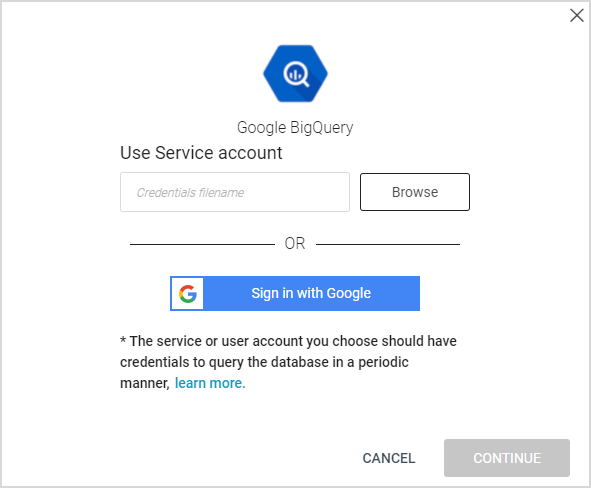
-
Sign in with your Google account and allow anodot.com to access your Google account. The Stream Query window is displayed.
Creating a Google BigQuery stream query
If you have just created a BigQuery data source, skip to step 3.
-
In the Sources page (accessed by clicking Integrations > Sources in the Navigation Panel), choose the BigQuery source for which you want to create a stream query.
Note: The streams associated with that source are displayed. If the Streams panel is empty, no stream queries exist for that source. -
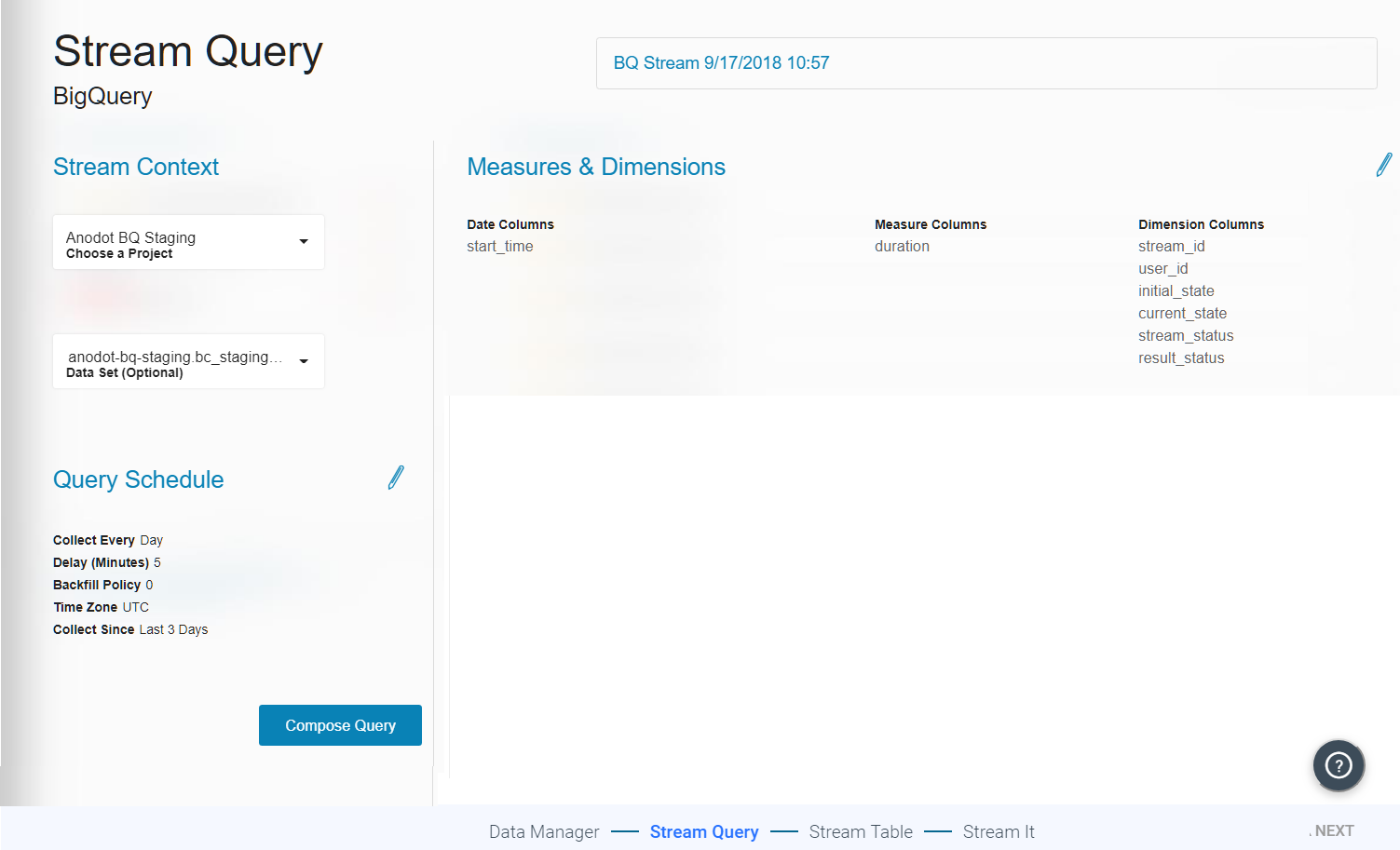
Hover over the Google Big Query data source, and click + New Stream. The Stream Query page is displayed.
-
In the Stream Context section, do the following:
- Choose a project from the Choose a Project dropdown menu. The list is searchable - just start typing the project name you are looking for.
- Choose a Data Set (optional).
-
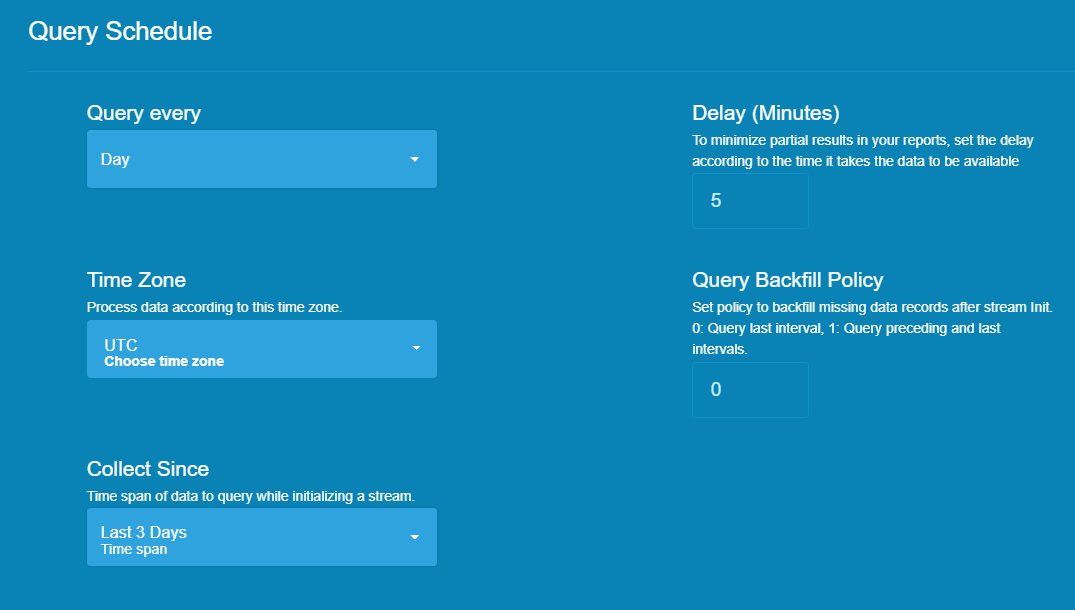
Click the Query Schedule edit icon to open the Query Schedule screen.
-
Define the following:
- In Query every, choose a query interval.
- In Time Zone, choose a time zone according to which the records will be processed. The default is UTC.
- In Collect Since, choose a time span of records to query while initializing the stream.
- In Delay (Minutes), set the delay. The default is 5 minutes.
Note: To minimize partial query results, set the delay according to the delay your internal process takes to prepare the data records. - In Query Backfill Policy, set the backfill missing data records policy after stream initialization. The default is 0.
Examples:
0 = Query only last day/hour
1 = Query previous and last day/hour
50 = Query previous 50 last days/hours
-
Click × to accept your query schedule and return to the Stream Query screen.
-
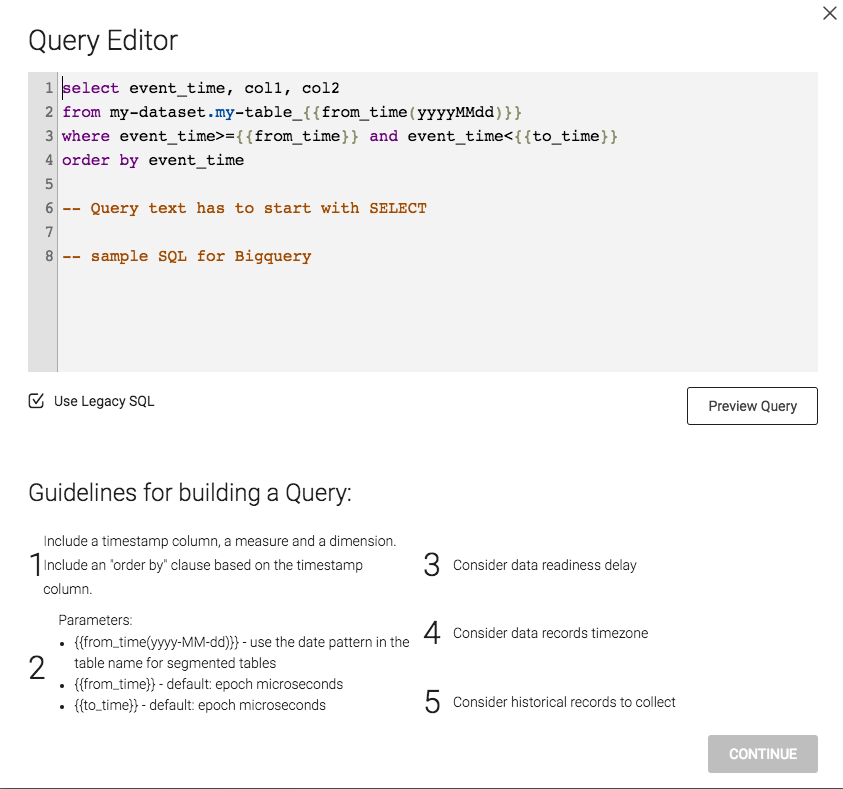
Click Compose Query to open the Query Editor.
-
In the Query Editor, do the following:
- Use the sample text and guidelines to build a query.
Note: If your SQL query returns a field of type "NUMERIC", an error will be displayed (Anodot does not support this field type). To resolve the error, cast the field to float64 using "CAST(expression AS FLOAT64)". - To use Standard SQL, deselect the Use Legacy SQL.
- To preview your built query, click Preview Query.
- Use the sample text and guidelines to build a query.
-
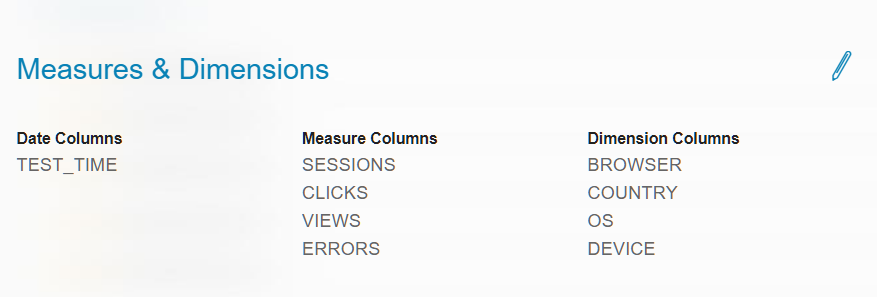
Once you are satisfied with the query, click CONTINUE to return to the Stream Query screen - the Dates, Measures and Dimensions are displayed.
-
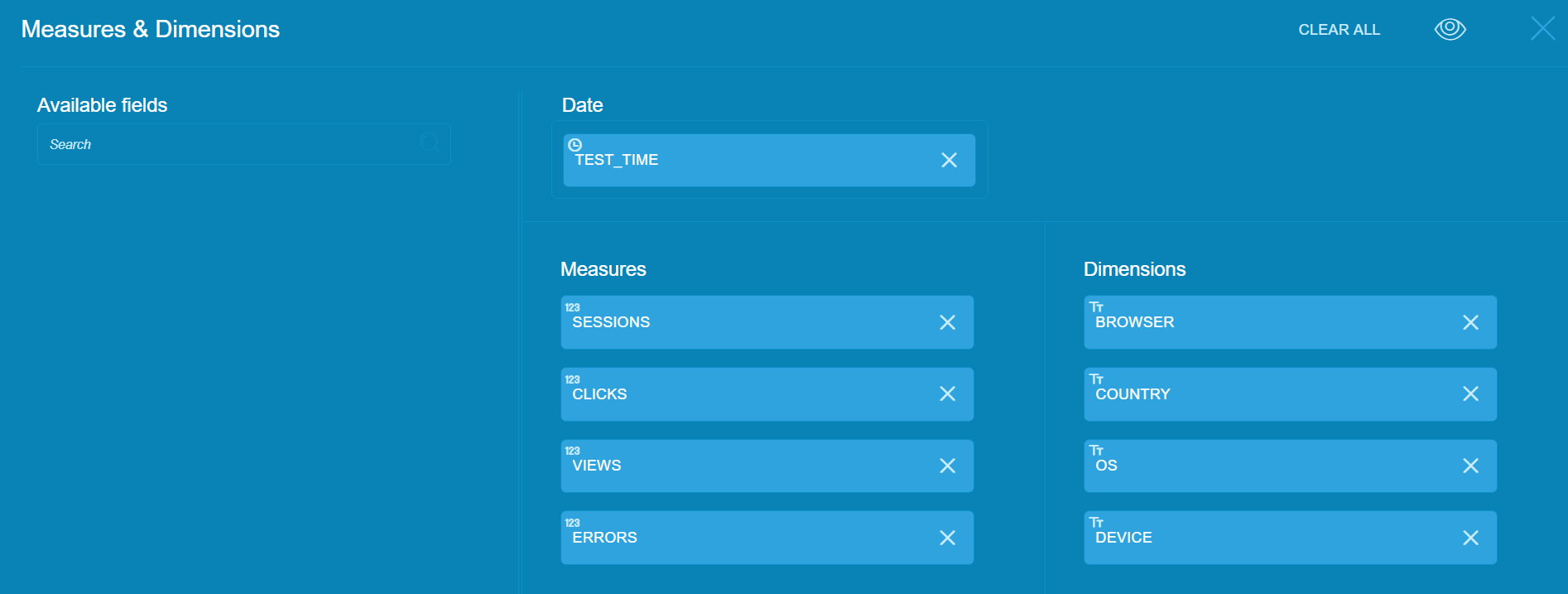
To edit any of the Measures & Dimensions, click the edit icon to display the following screen:
-
Edit the parameters you want to change in the following sections:
- Date
- Measures
- Dimensions
-
Click × to accept the chosen parameters and return to the Stream Query page.
-
Click NEXT to display the Stream Table.
Updated over 1 year ago