

Segment
You can collect data from Segment in two simple steps:
- Connect Anodot with Segment by creating a Segment data source and copy the Anodot API key in Anodot to Segment.
- Create a Segment data stream.
Creating a Segment data source
To create a Segment source:
-
In the Navigation Panel, go to Integrations > Catalog.
-
Use the Search box OR click the Collector filter to locate the data source.
-
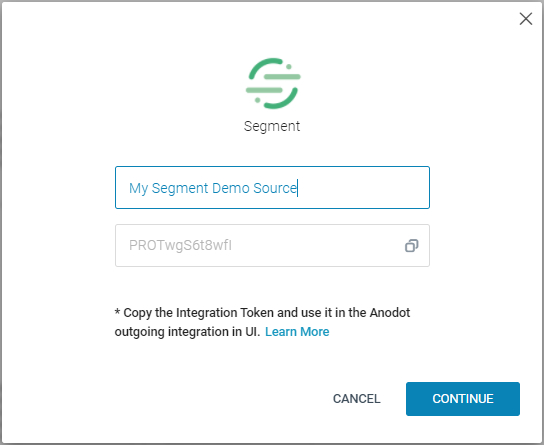
Hover over the Segment tile, and click Start. The Segment dialog is displayed.
-
Define a name for the data source, and copy the displayed Integration Token.
-
In your Segment account, do the following:
- Create the Anodot destination type.
- Paste the Integration Token in the API Key field.
-
In the Segment dialog in Anodot (as displayed above), click CONTINUE. You can then define the Segment data stream, as described in the procedure below.
Creating a Segment data stream
If you have just created a Segment data source, skip to step 3.
-
In the Sources page (accessed by clicking Integrations > Sources in the Navigation Panel), filter the displayed list of streams to find the Segment source for which you want to create a stream query.
Note: The streams associated with the source are displayed. If no streams are displayed for the Segment data source, no stream queries currently exist. -
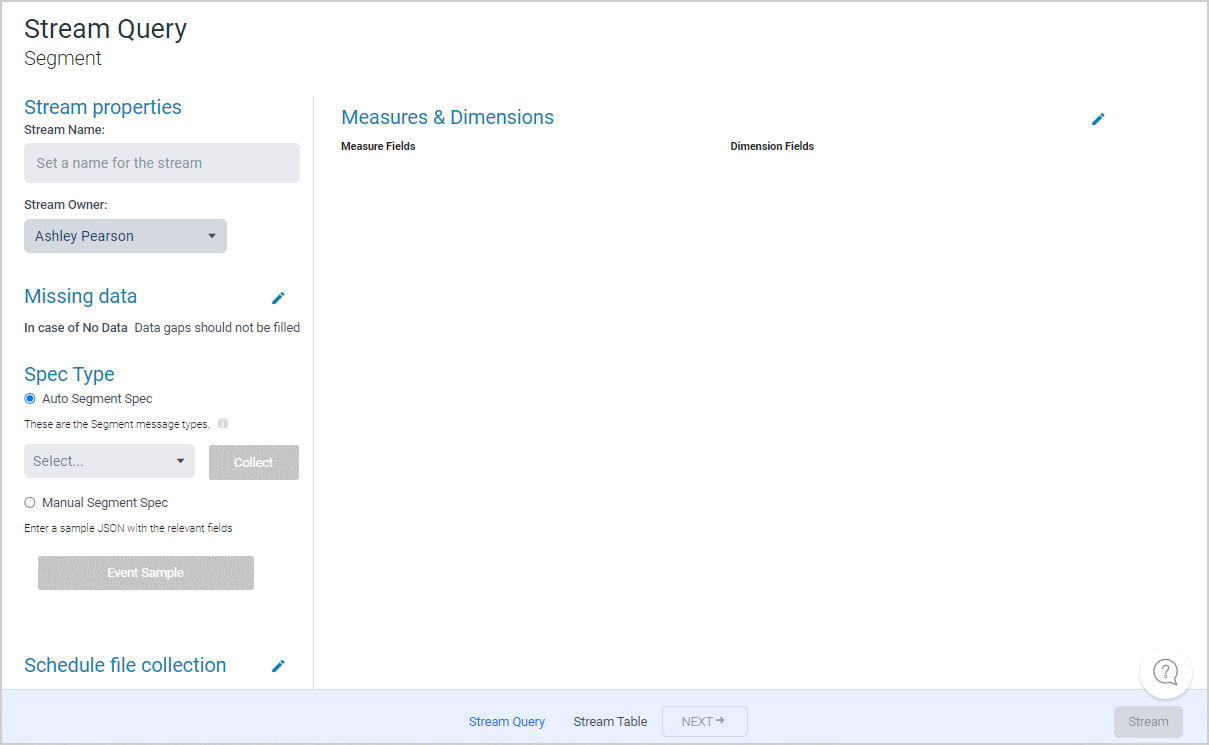
Hover over the Segment row in the displayed list of streams, and click + New Stream to display the Stream Query window.
-
Define the following:
- In the Stream Properties section, define a Stream Name and Stream Owner.
- In the Missing data section, select from one of the following when there is no data:
- Data gaps should not be filled
- Fill in the gaps
- In the Spec Type section, select from one of the following:
- Auto Segment Spec: Select the relevant Segment message types and click Collect. The relevant message fields are displayed.
- Manual Segment Spec: Click Event Sample to upload a sample JSON with the relevant fields.
- In the Schedule file collection section, define the collection schedule.
- Select the relevant Measures & Dimensions from the list of fields detected by Anodot.
-
Click NEXT. The Stream Table is displayed, as described in Stream Tables .
NoteCurrently this integration is only available for customers in the US data center. If you need it on a different data center, please contact Anodot Support.
Updated over 1 year ago